

Guest Author: Sony Alpha Universe - This editorial article was originally published on AlphaUniverse.com. To read the original article, click here.
Customizing your Alpha camera for specific photography needs can significantly enhance your shooting efficiency. Professional portrait photographer and Sony Artisan Miguel Quiles, shares his insights on optimizing the Alpha 7R V for portrait photography. This step-by-step guide will help you set up your camera to ensure a smooth and successful portrait shoot.
Camera Settings For Portrait Photography
Initial Setup
When starting with a fresh camera, such as the Alpha 7R V Quiles has in the video, you'll need to complete some initial setup steps. Begin by selecting your language, agreeing to the privacy notice, setting the area/date/time, choosing settings to prioritize recording time and registering the device.
Menu Settings and Customization
Image Quality Settings
In the quick menu, first access the Image Quality Settings:
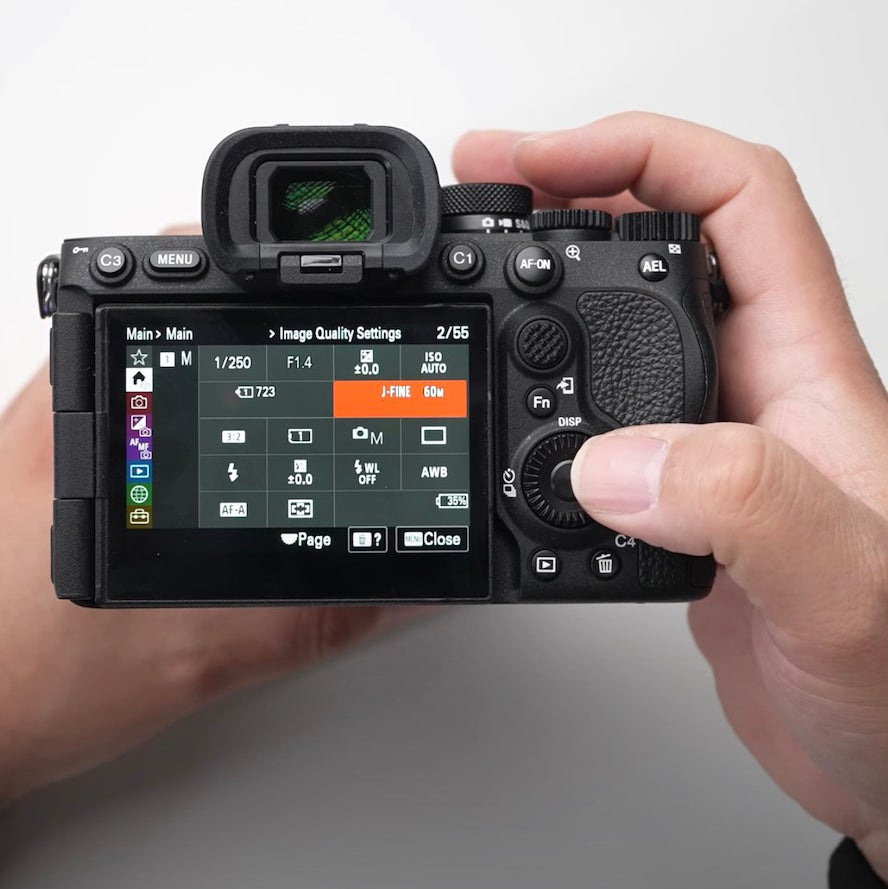
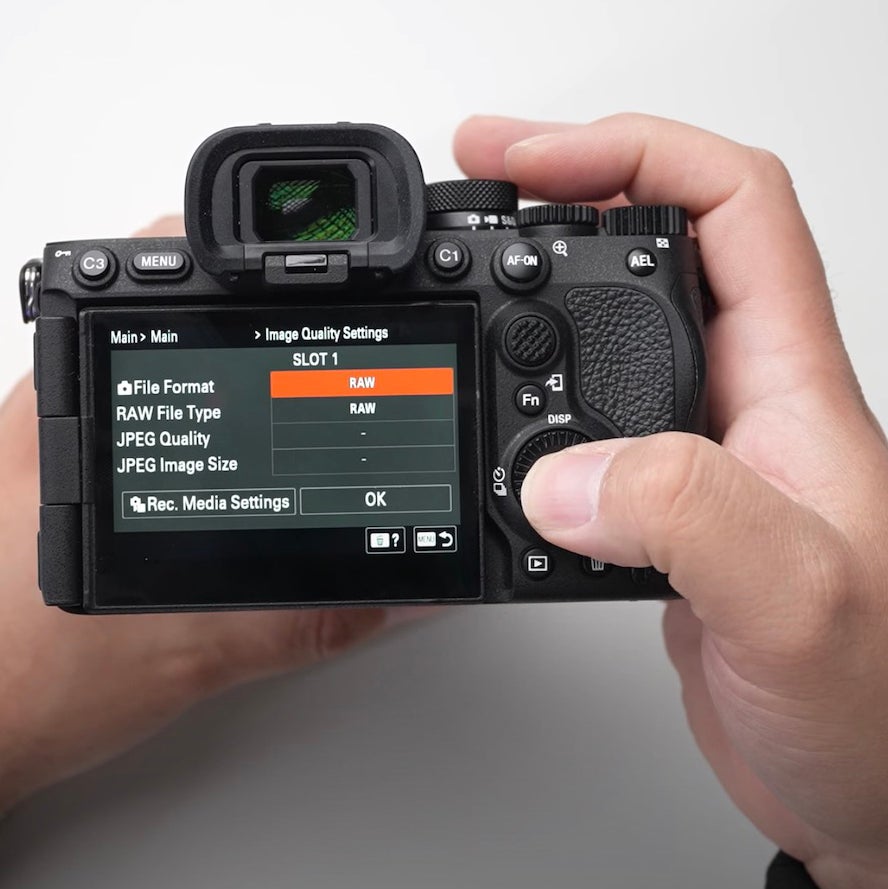
Choose your File Format. Quiles prefers shooting in RAW or RAW+JPEG, depending on the session type.
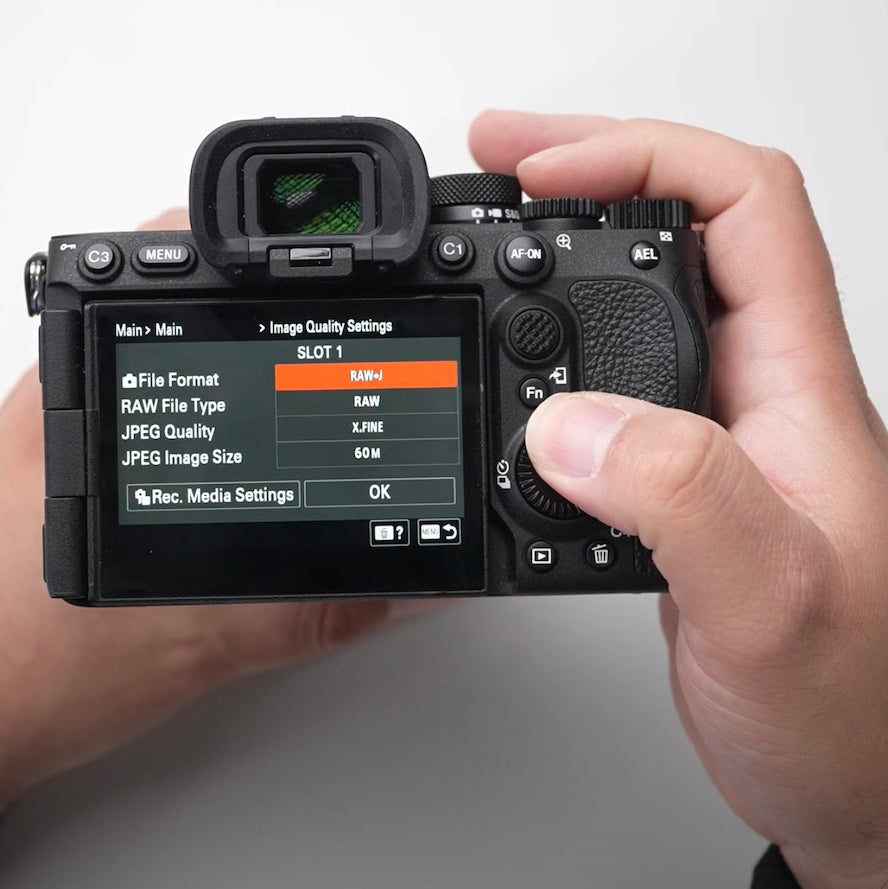
If using RAW+JPEG, set JPEG Quality to Extra Fine and Image Size to 60 megapixels.
Rec. Media Settings
In the quick menu:
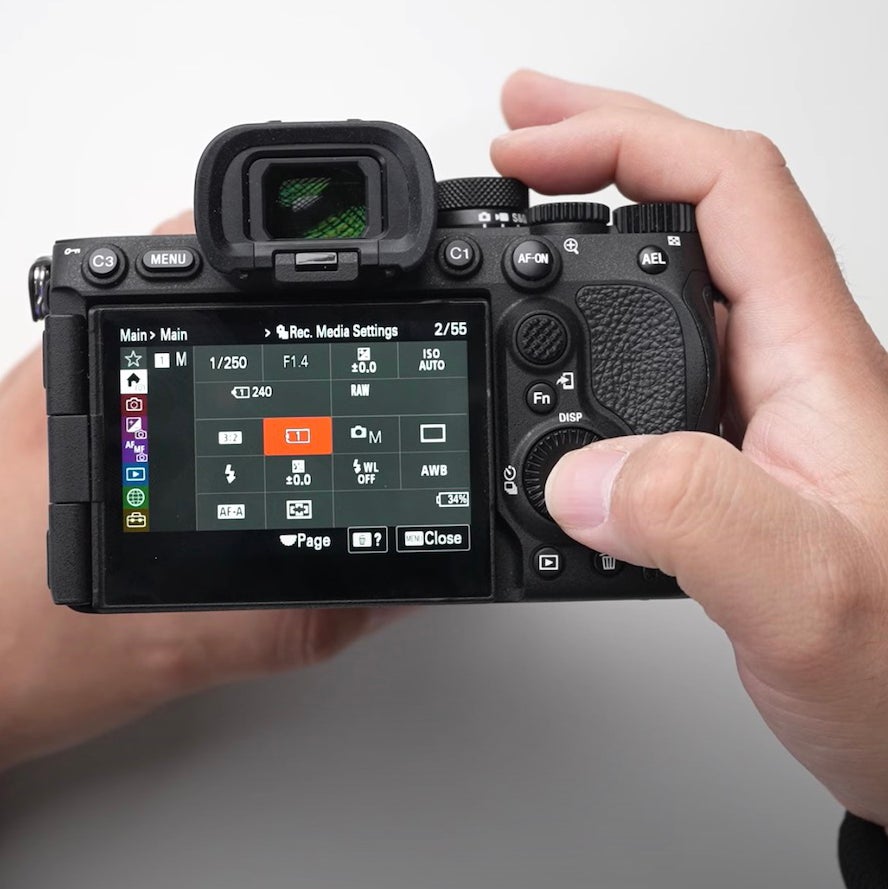
Set your memory card slot to capture stills (Slot 1 recommended).
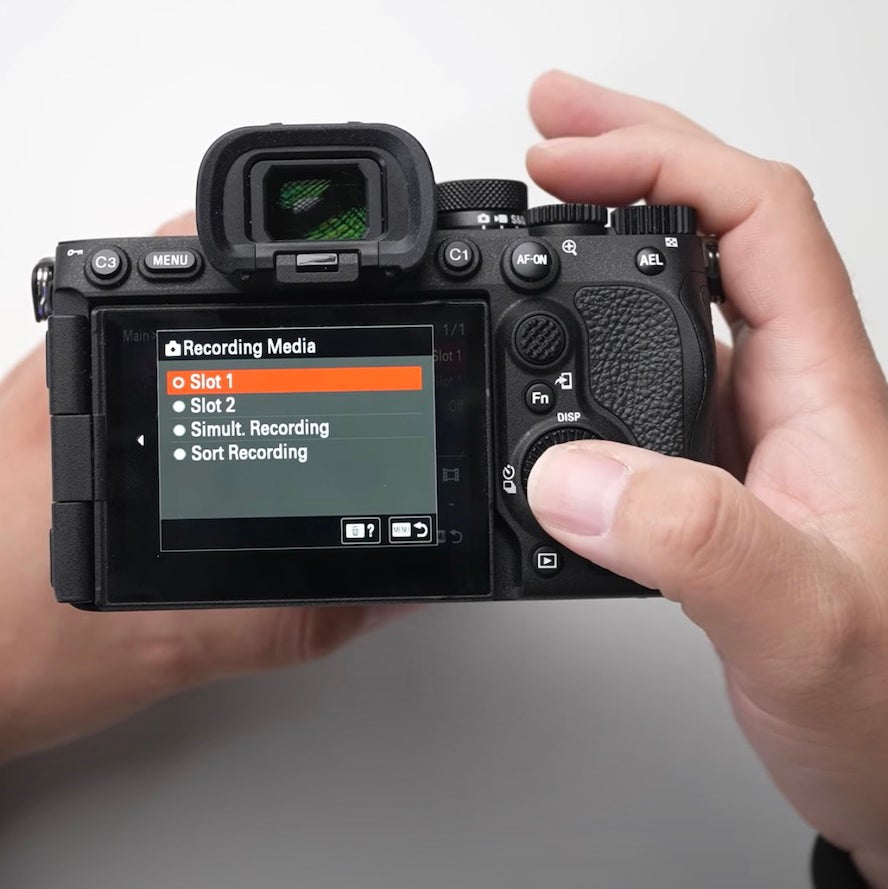
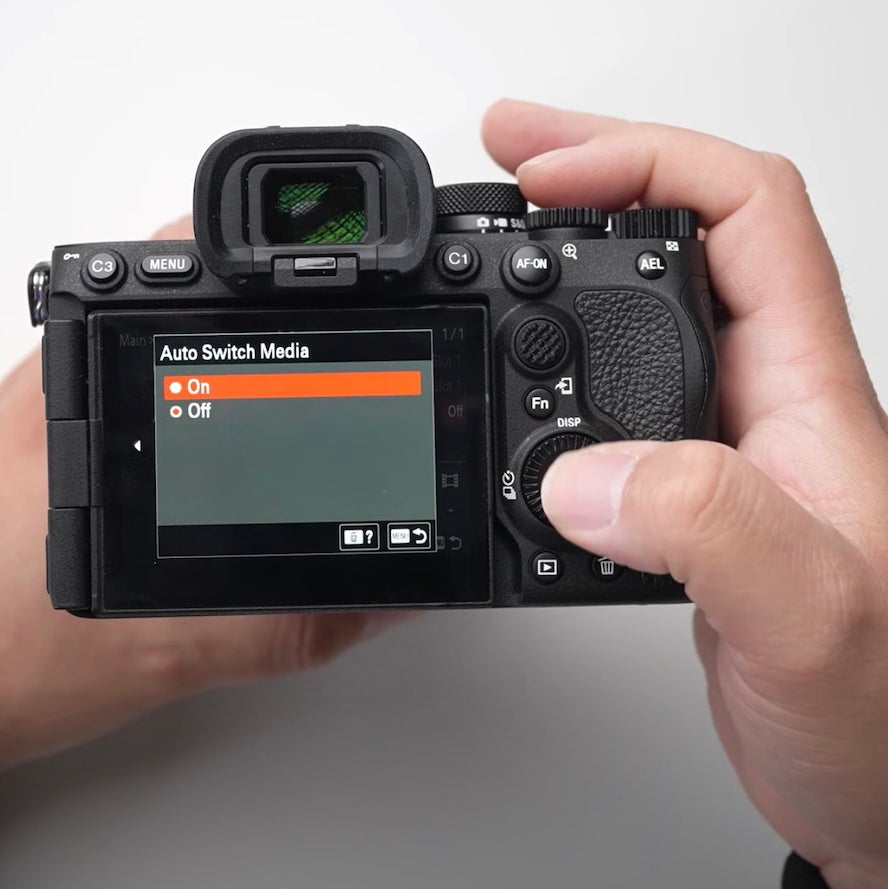
Ensure Auto Switch Media is ON for seamless transitions between full memory cards.
Wireless Flash & Focus Mode
For those using off-camera flash:
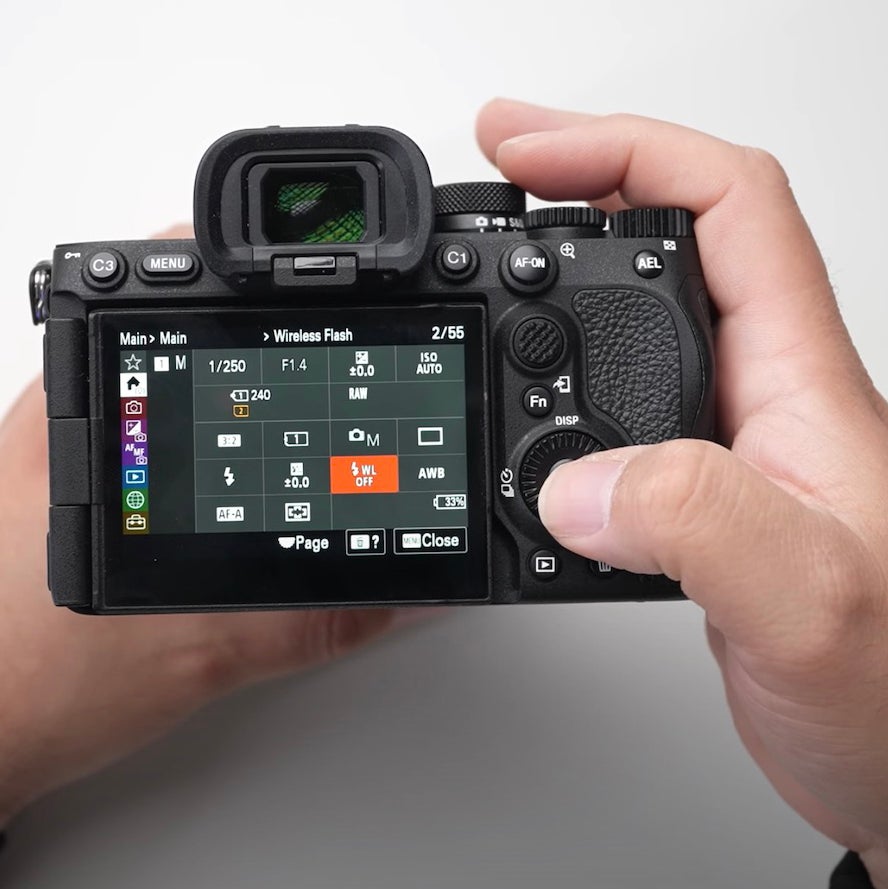
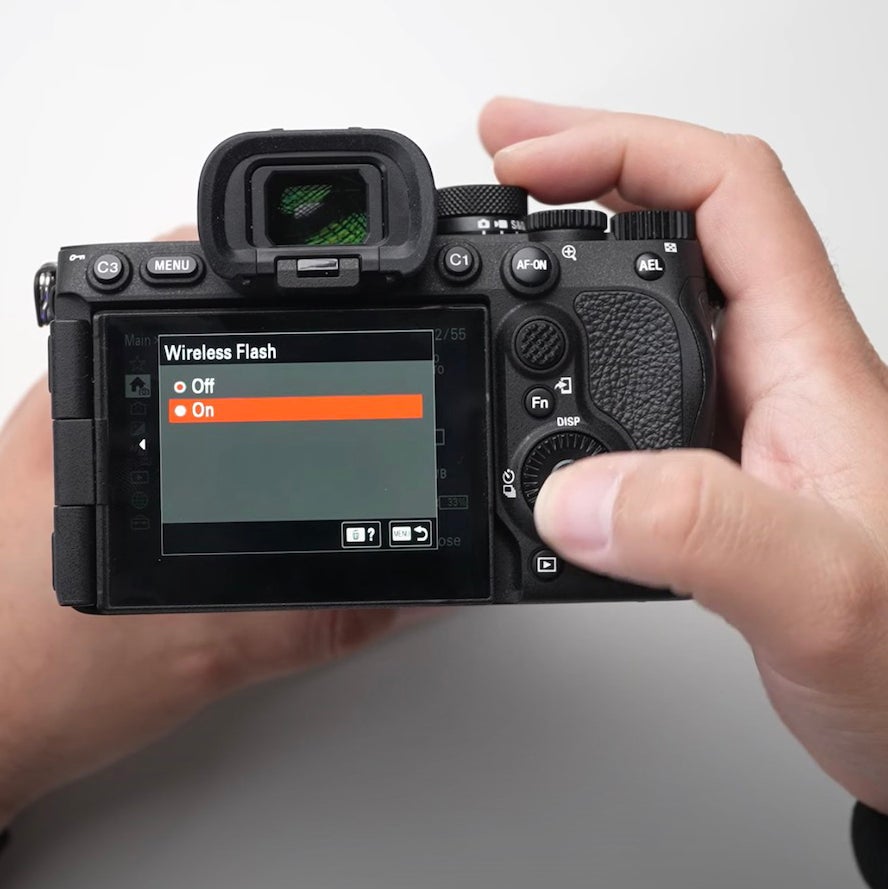
Enable Wireless Flash in the menu for automatic activation with the hot shoe.
Set Focus Mode to Continuous AF, which Quiles uses for portraits almost exclusively.
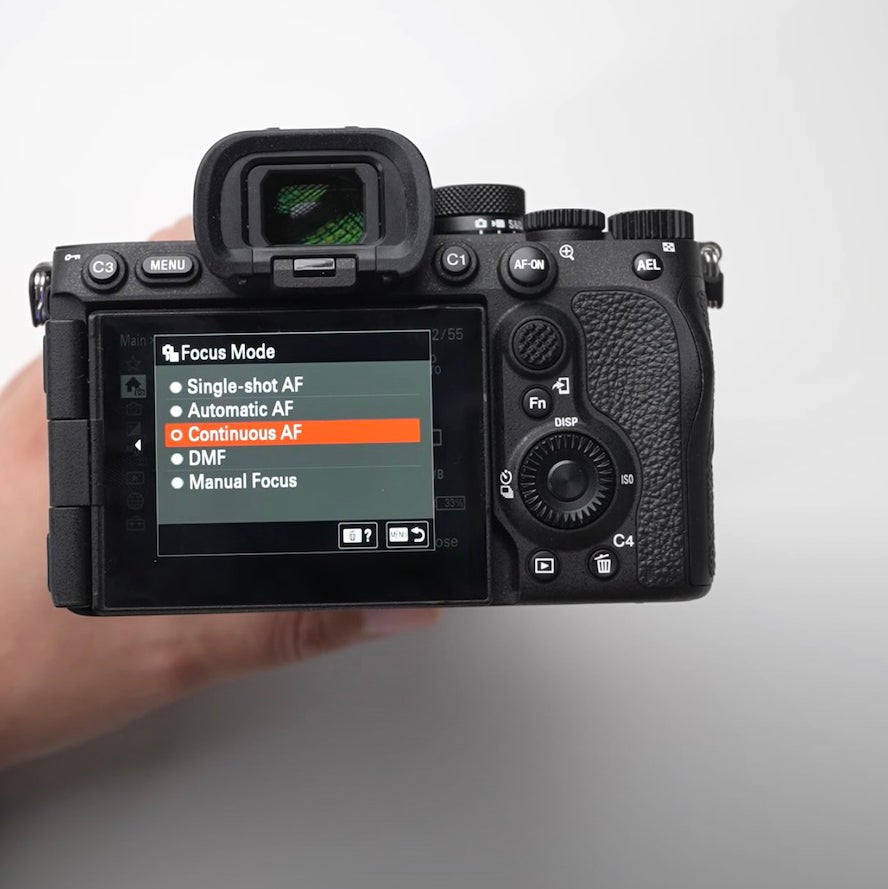
Those are all of the settings Quiles likes to access from the quick menu. Next we dive deeper into the main menus of the camera.
Advanced Menu Customization
File & Copyright Info
In the Shooting Menu:
Customize your File Name for easy identification across multiple cameras.
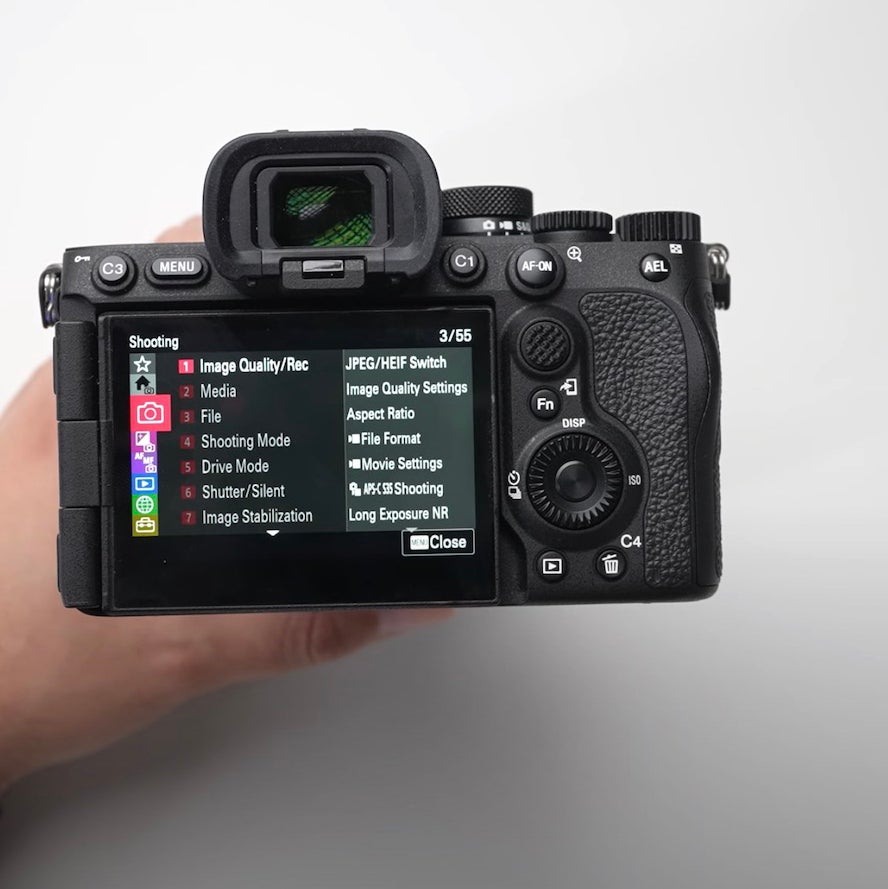
First under the Shooting Menu, select File:
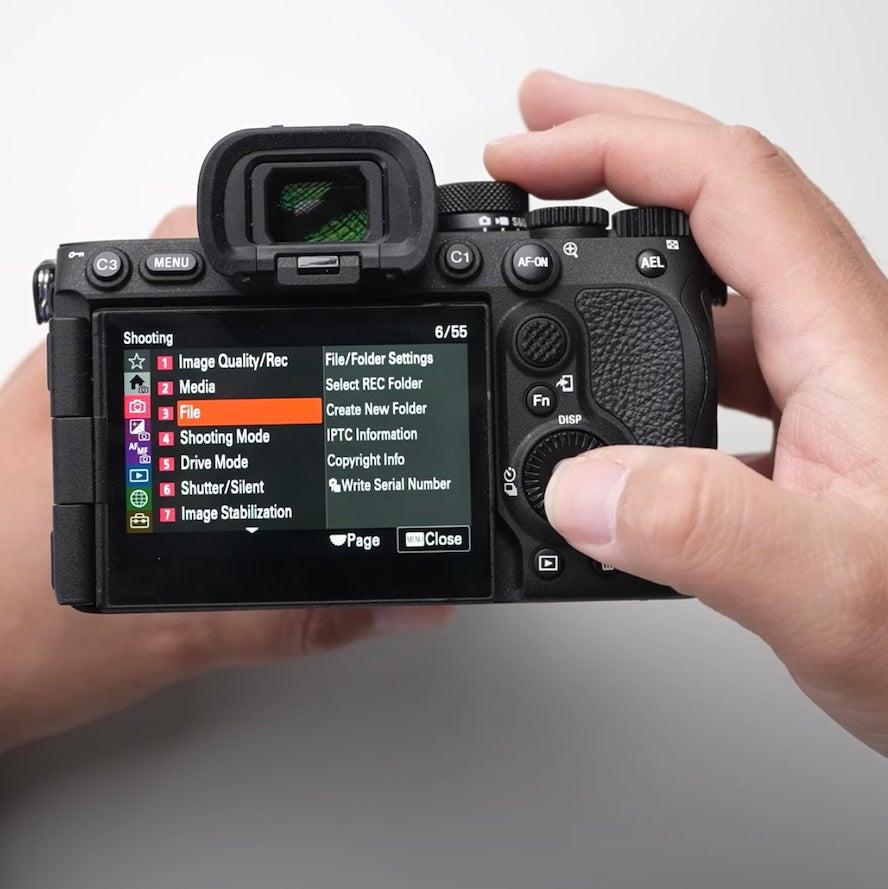
Next select the first option, File/Folder Settings:
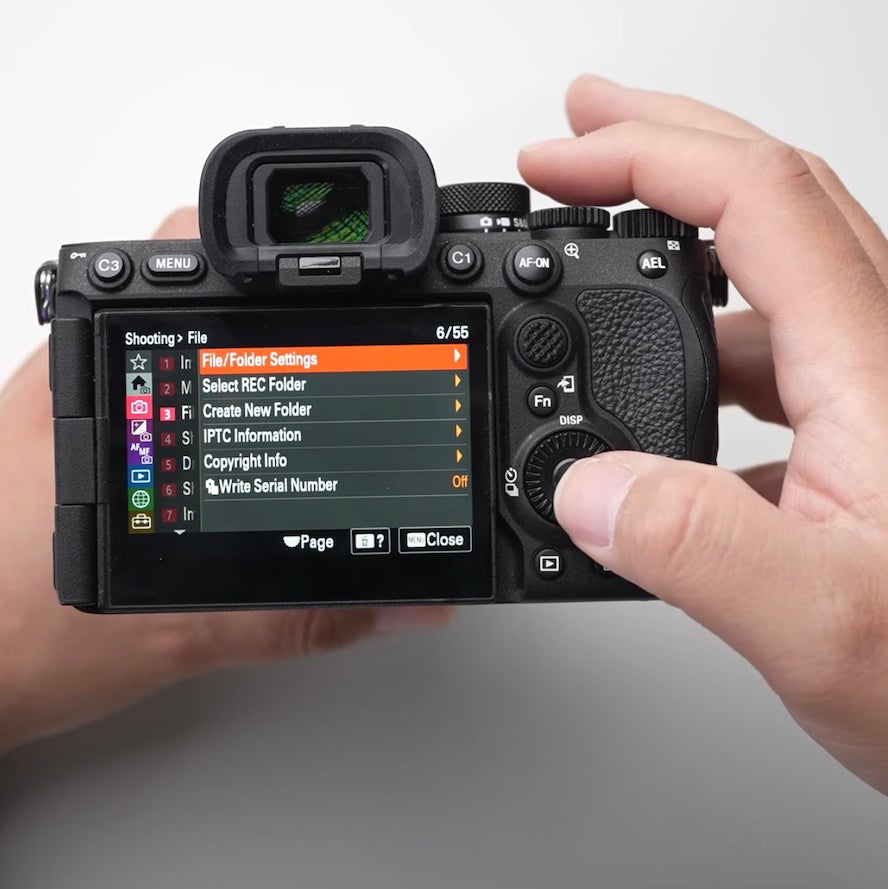
Next you’ll select Set File Name:
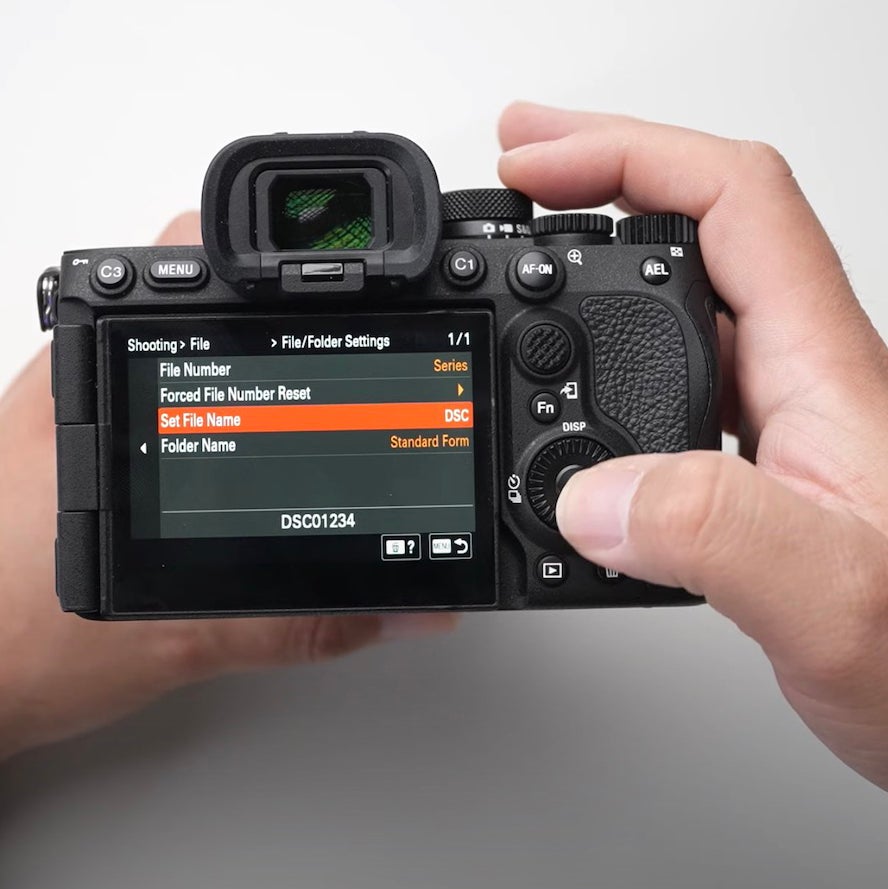
Here you can set the file name for your images that come out of the camera. (Because Quiles has multiple cameras, he likes to set each with a different file name so he knows which camera each image came from):
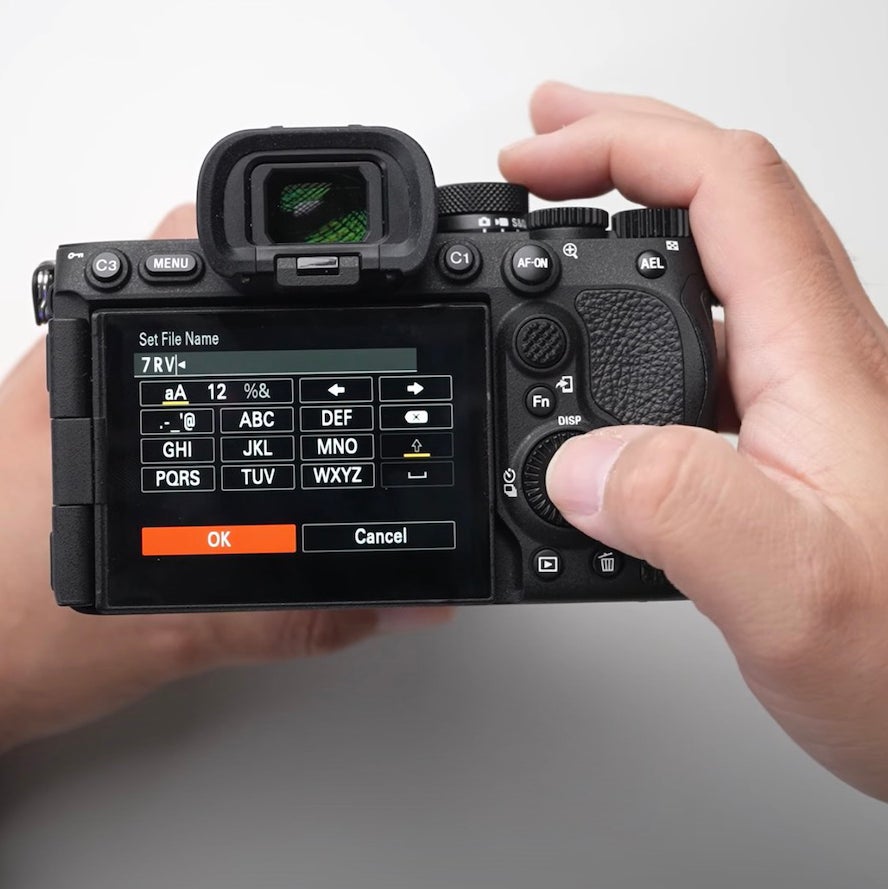
Returning to the File section of the Shooting Menu, next you want to select Copyright Info:
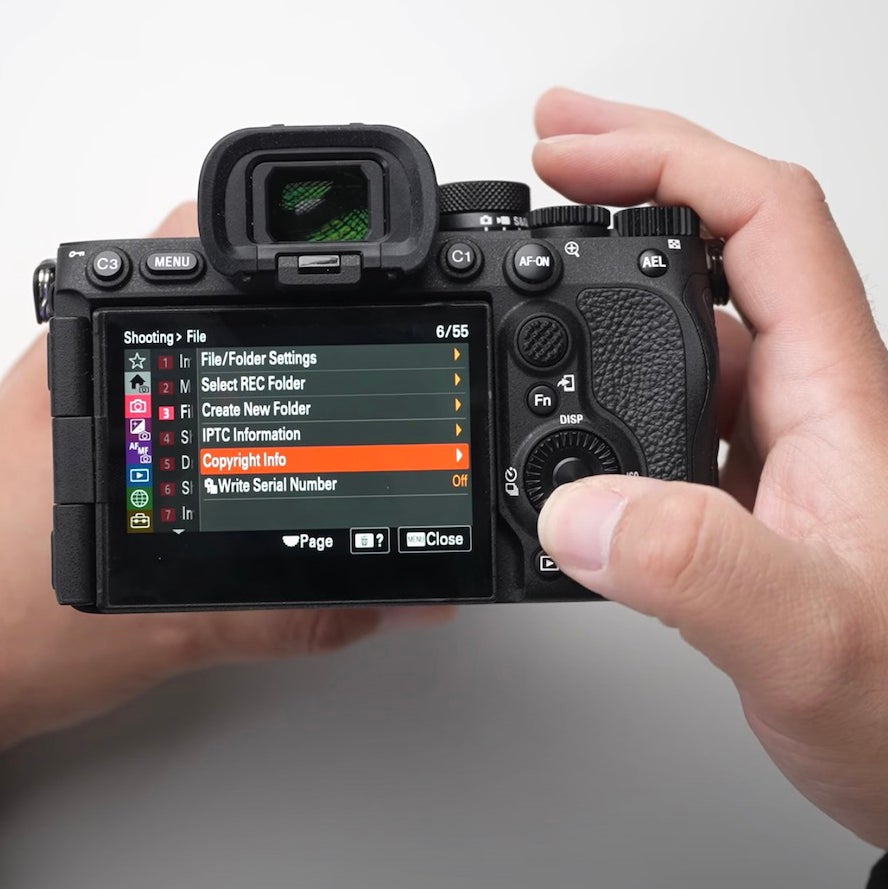
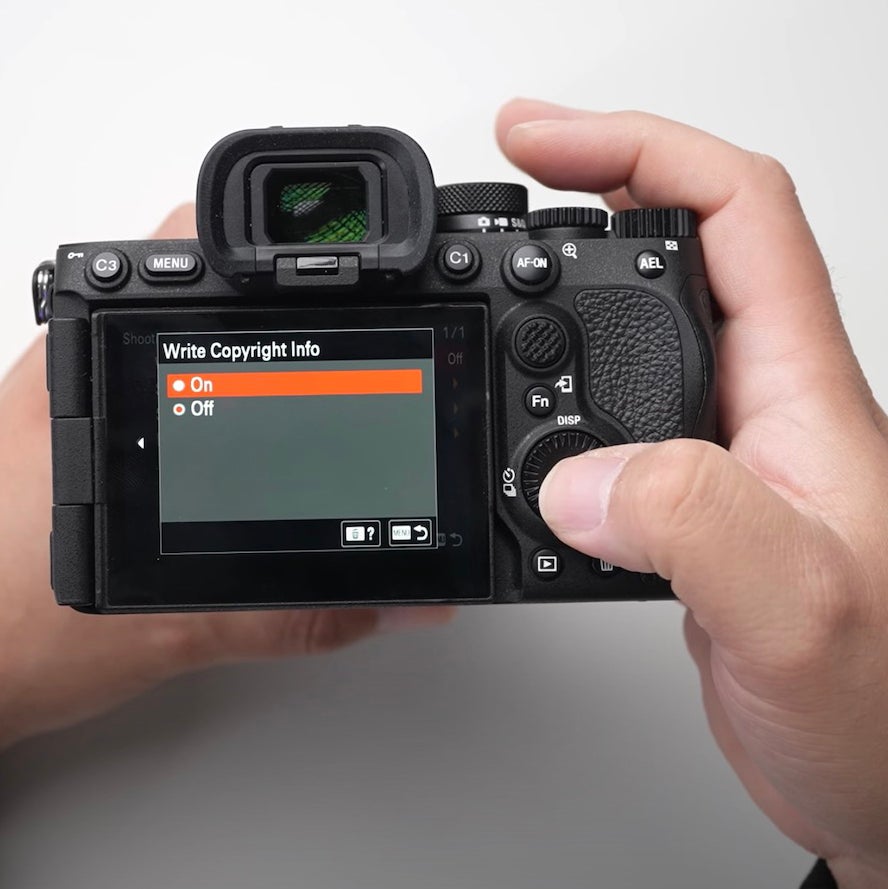
Select Write Copyright Info:
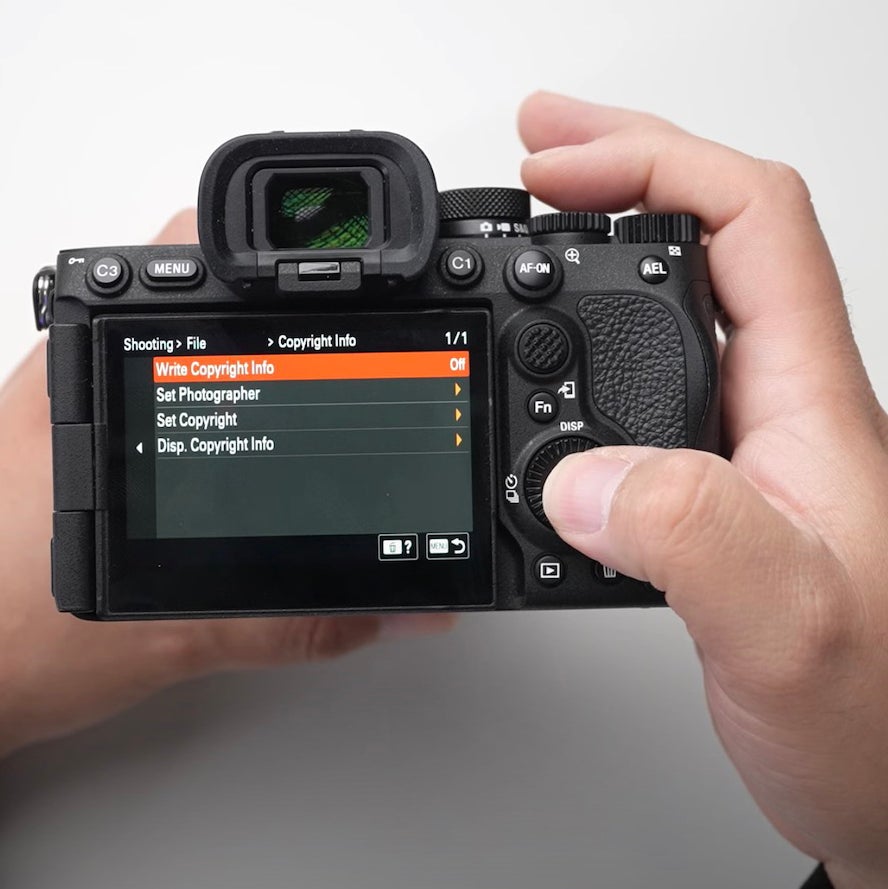
Turn Write Copyright Info to ON (Quiles recommends setting the copyright information within the camera so it’s already taken care of and you don’t have to in post-production):
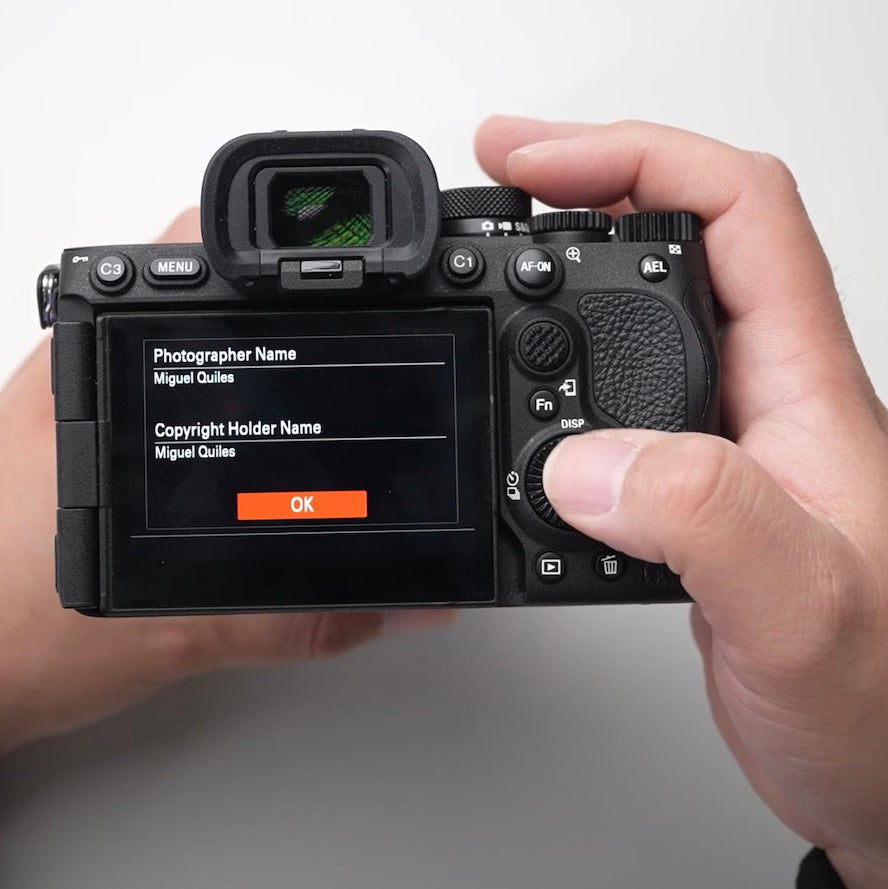
Next you can select the other items from the Copyright Info menu and set them with your name:
Shooting Display/Gridlines
Next within the Shooting Menu you want to go down to #9 to select Shooting Display:
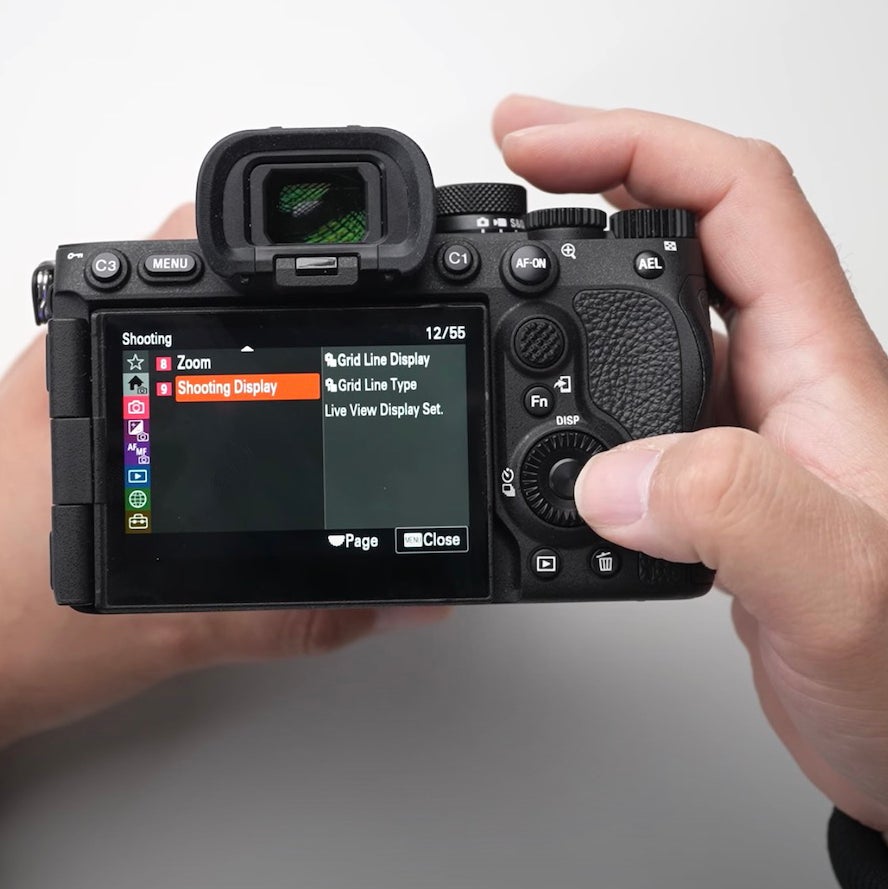
Turn on the Grid Line Display for straight and symmetrical lines.
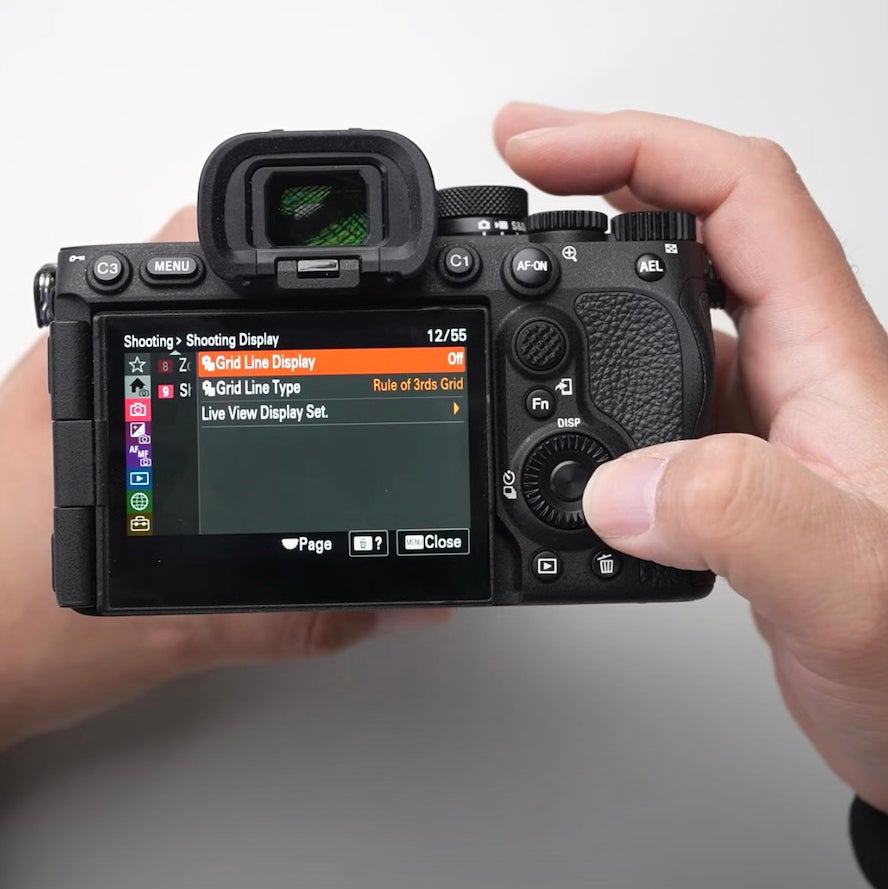
Choose Diag. + Square Grid for optimal composition assistance.
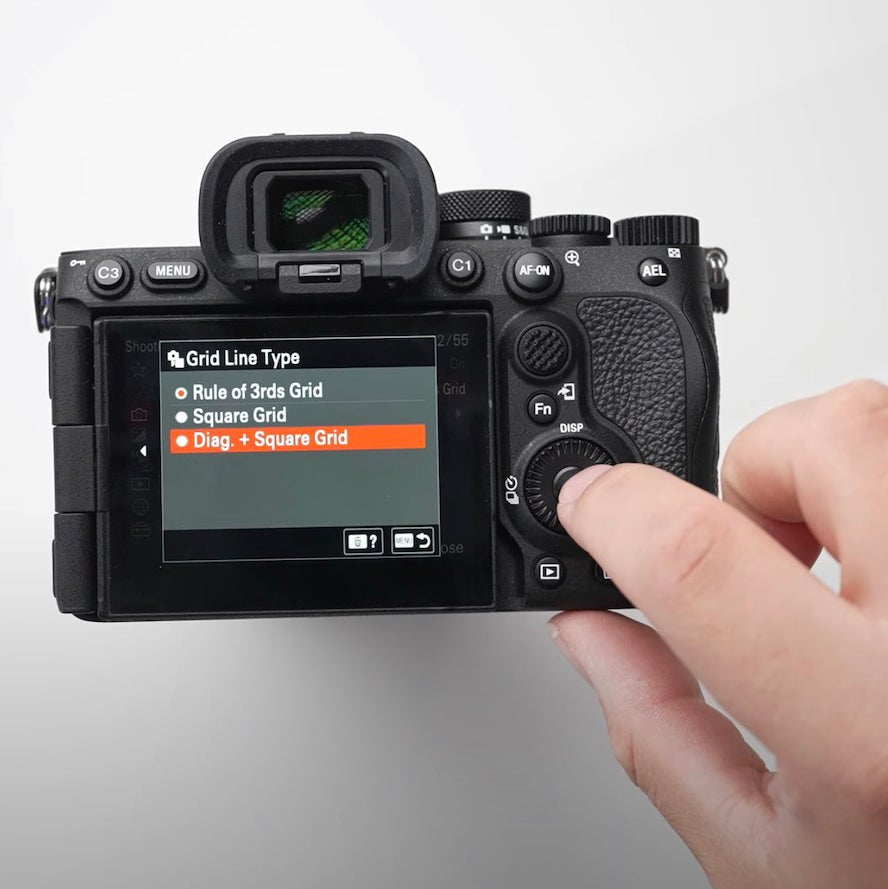
Customize Buttons & Function Menu
In the Setup Menu:
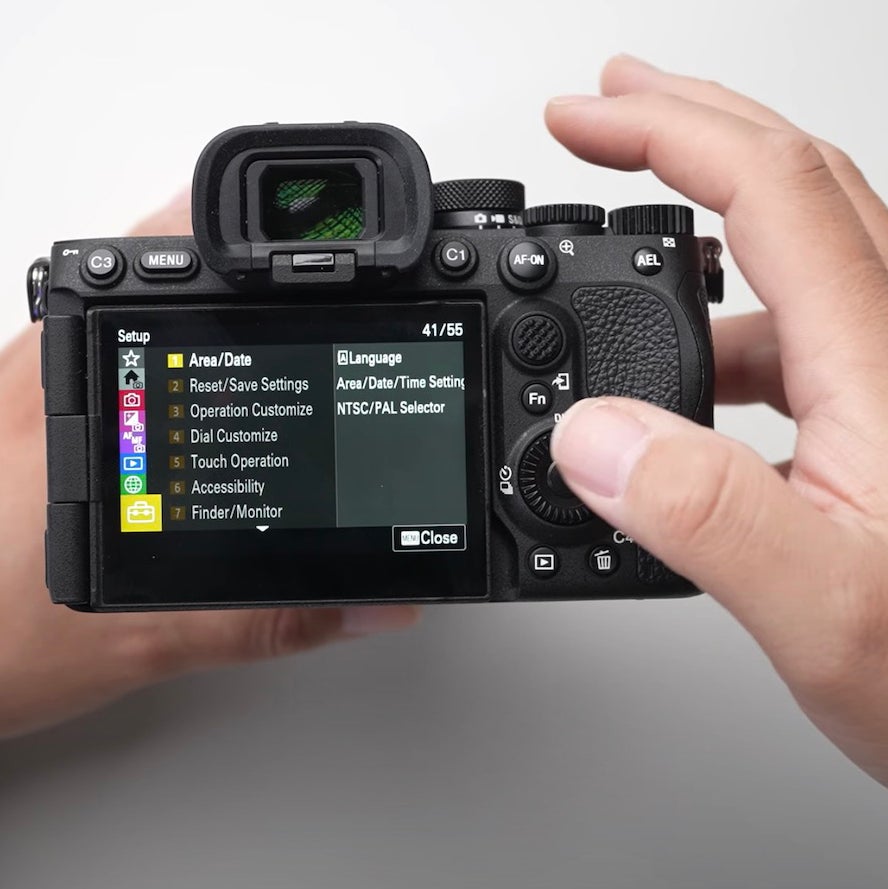
Select Operation Customize.
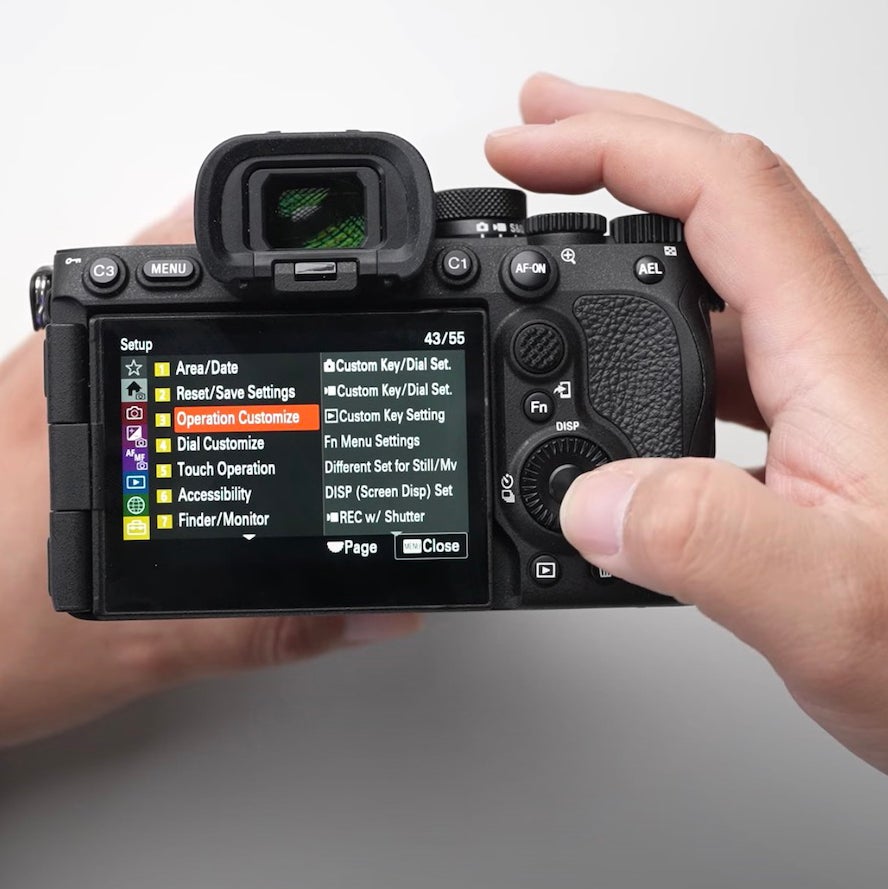
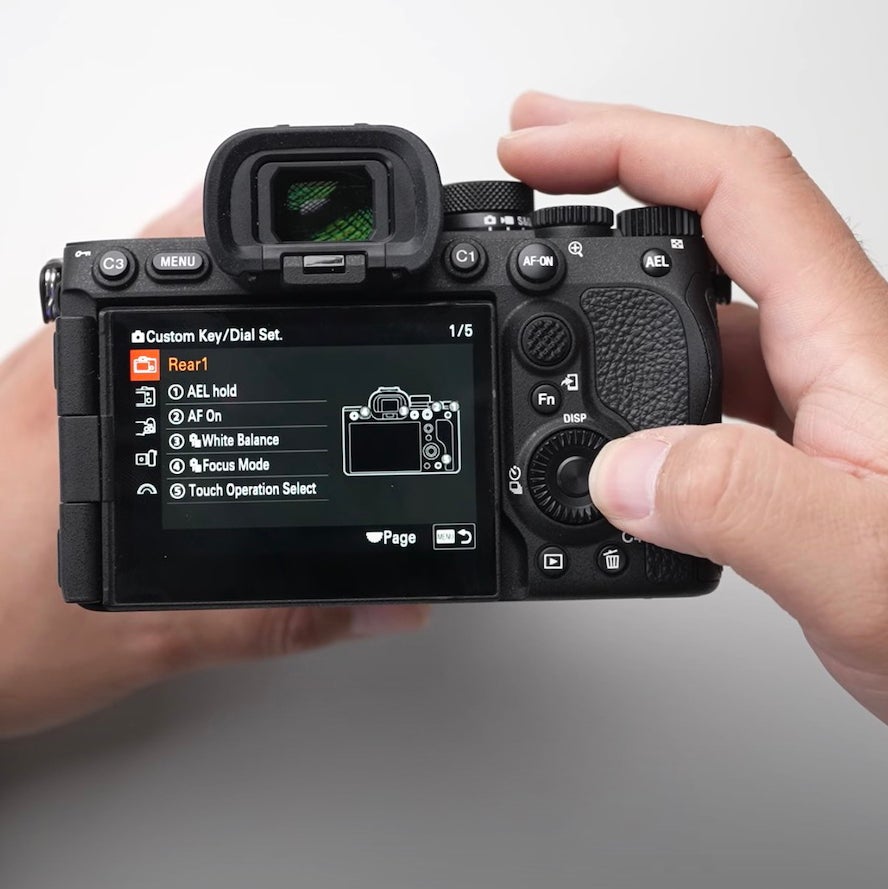
Select Custom Key/Dial Set:
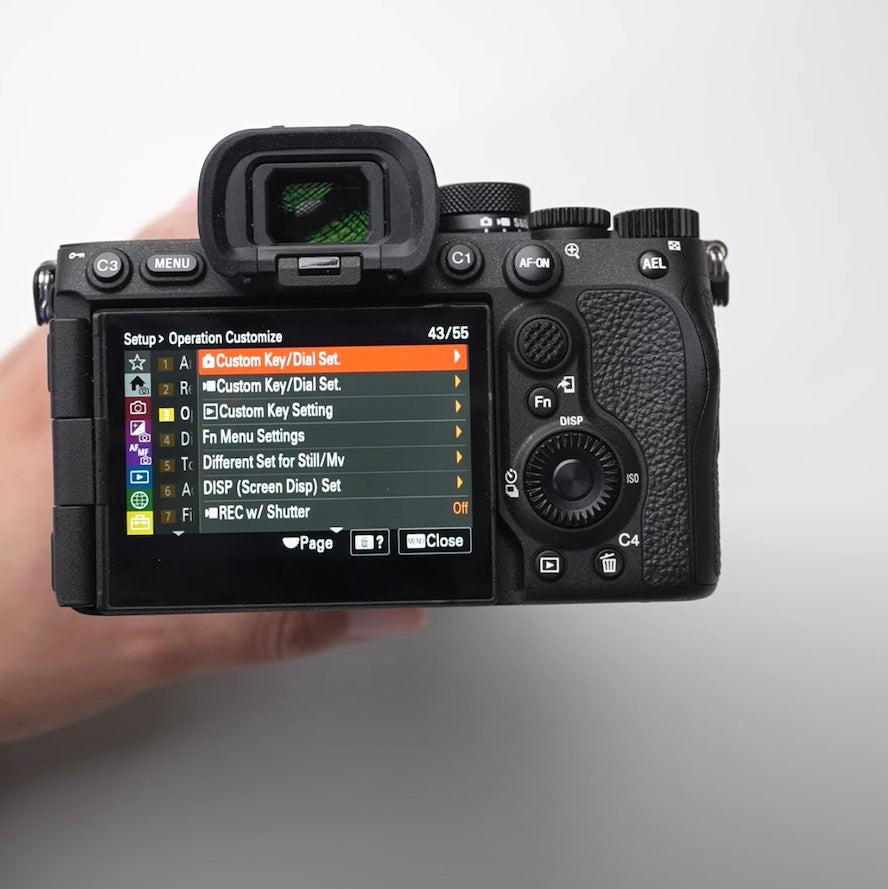
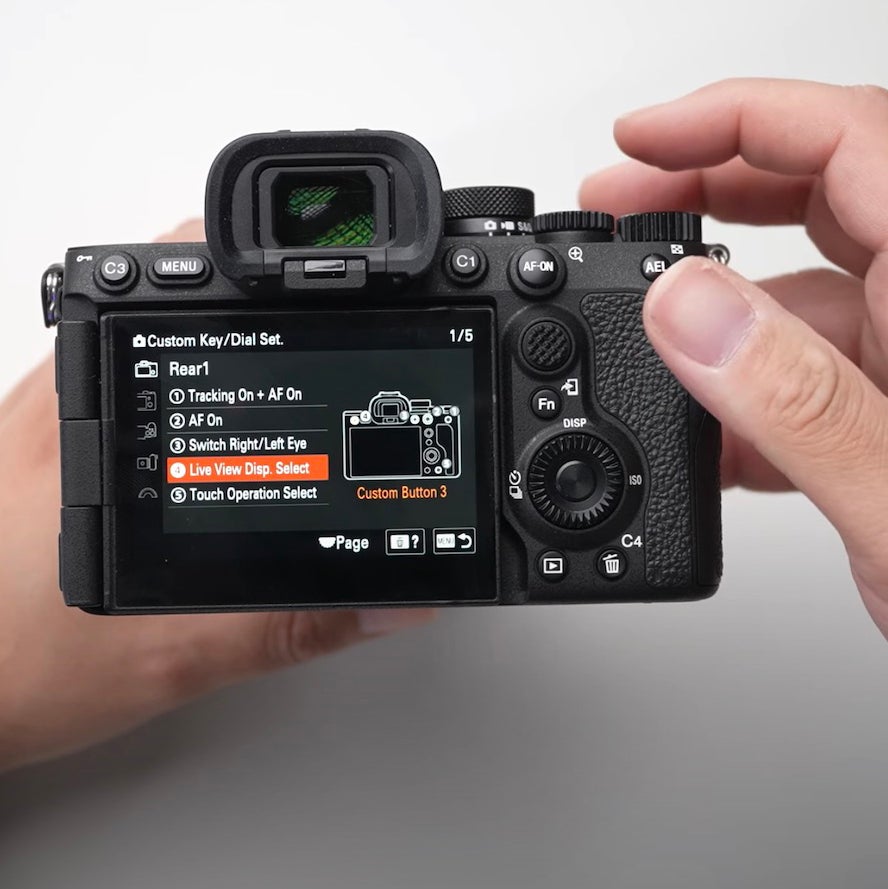
This is where you can customize the rear buttons on the camera. Rearrange the Custom Key/Dial Set to prioritize features used in portrait photography.
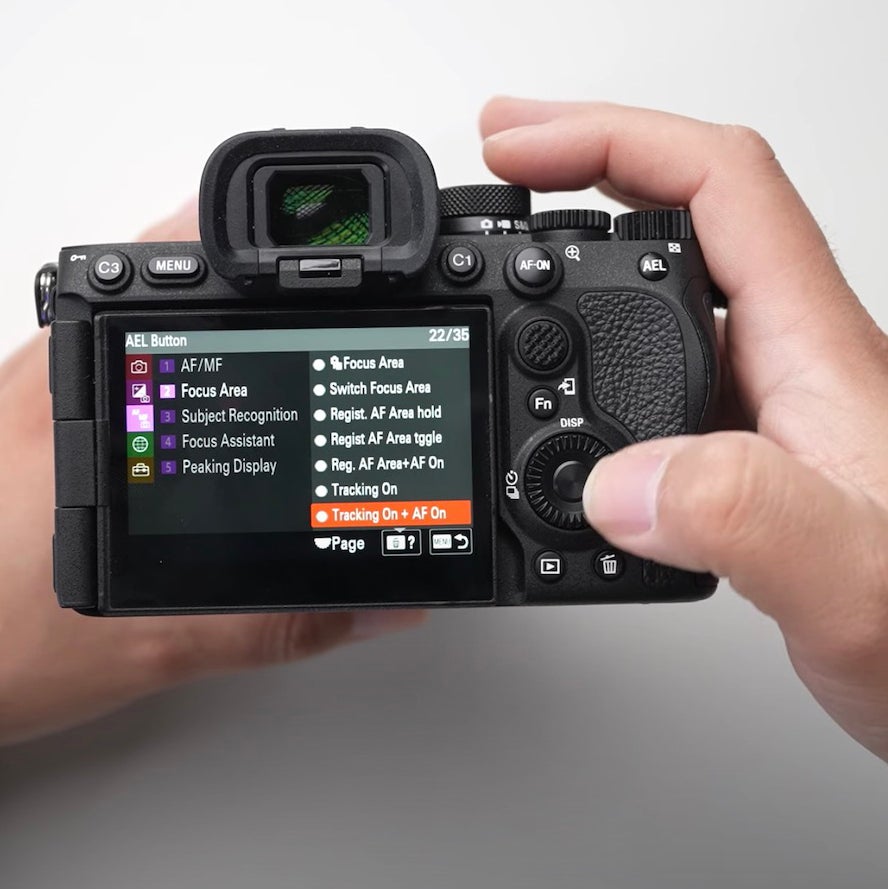
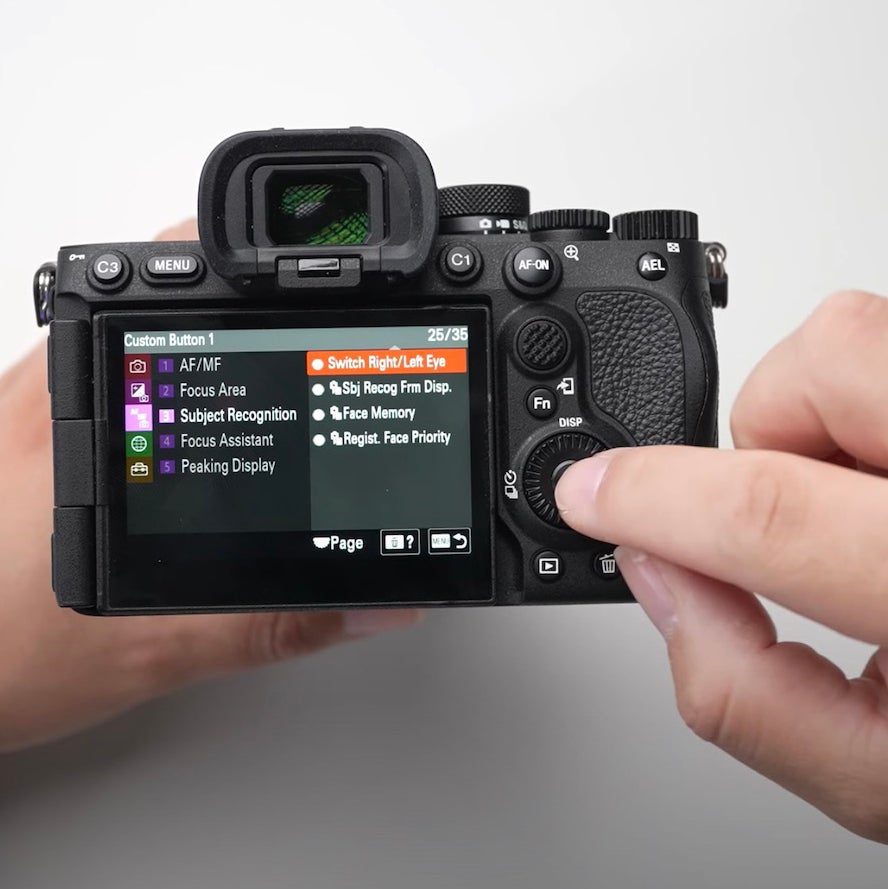
Set the rear AEL button to Tracking On + AF On and Custom Button 1 to Switch Right/Left Eye.
Assign Custom Button 3 to Live View Display Select for quick toggling.
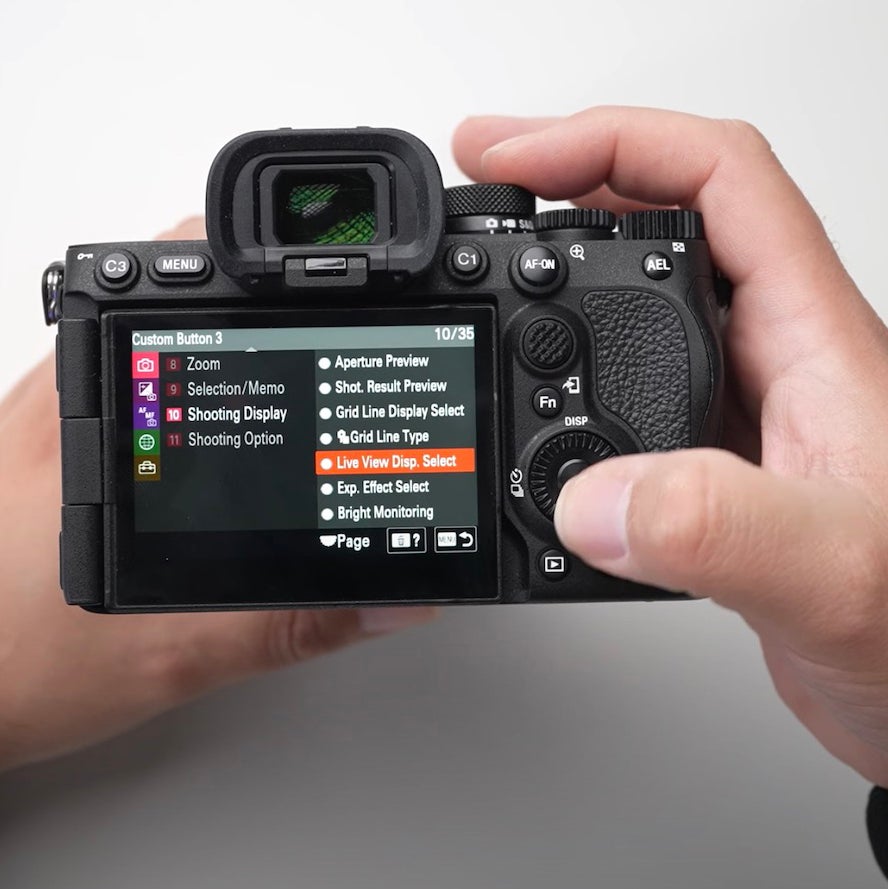
With the rear buttons now customized, Quiles’ menu looks as follows:
Customize The Function Menu Accessed By The Fn Button:
Remove less-used functions and add frequently used ones for portrait photography.
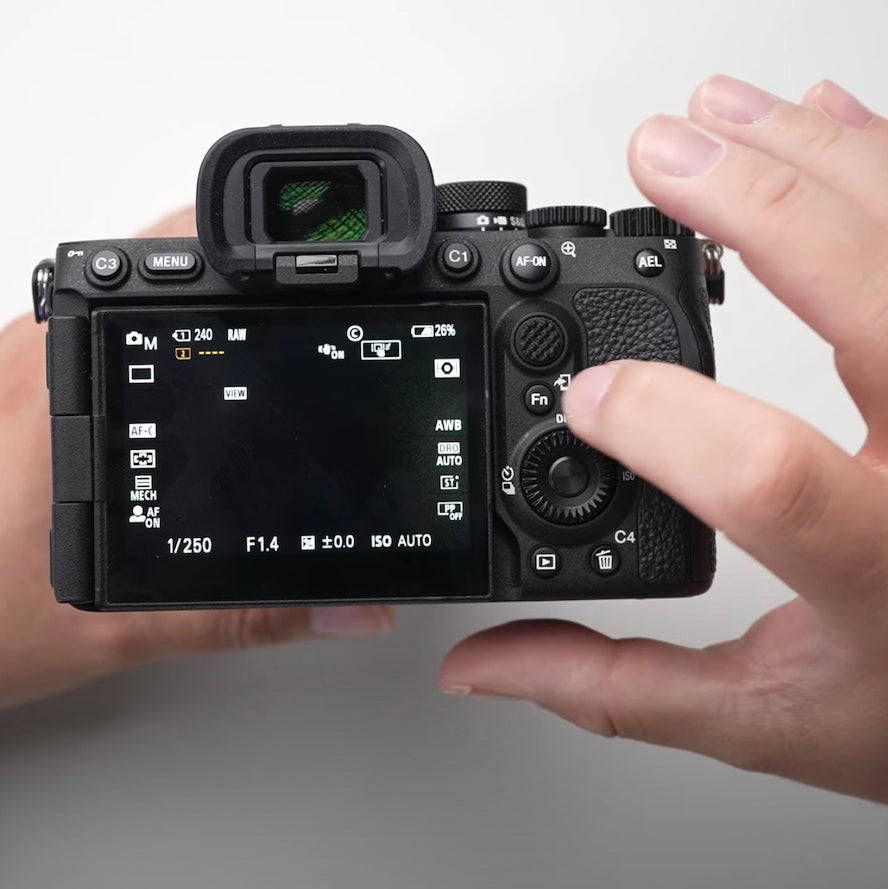
To customize the Function Menu, return to your Custom Settings and select Fn Menu Settings:
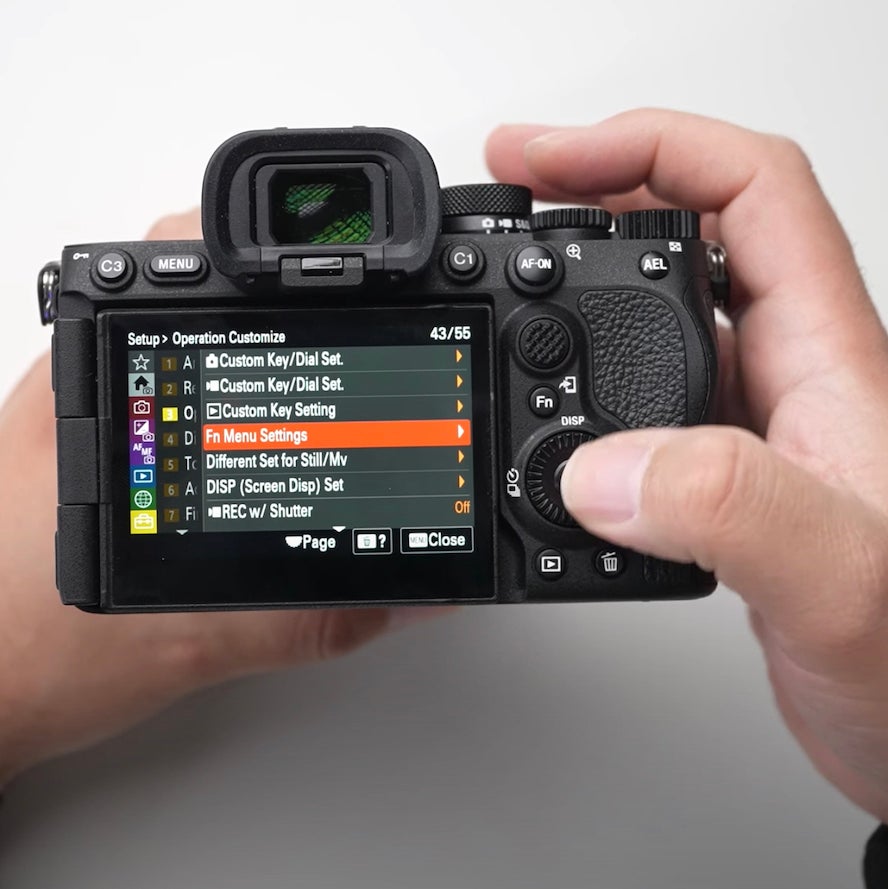
This will bring up your Function Menu Settings, and Quiles recommends removing anything from the menu that you don’t typically use and replacing it with functions you use more often. He removes Rec. Media Setting and changes it to APS-C shooting in case he wants extra reach while photographing portraits:
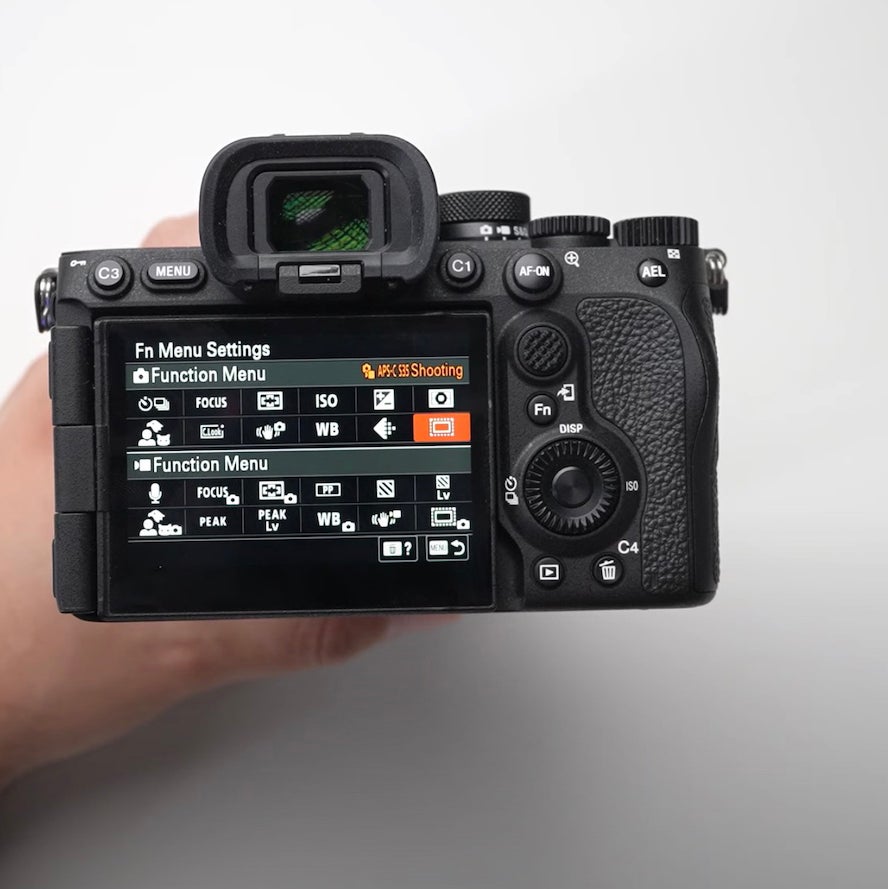
With these settings, your Alpha 7R V is ready for portrait photography. Visit the Sony Alpha YouTube Channel for more videos like this one.
Featured in this blog:
 Sony a7R V Body
This editorial article was originally published on AlphaUniverse.com. To read the original article, click here.


